




Onesize: Ericsson CES 2012 Keynote Film

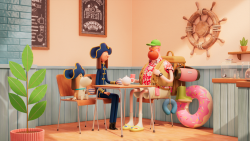
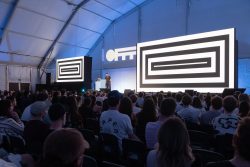
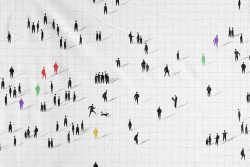
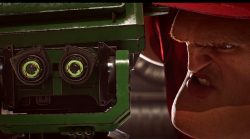
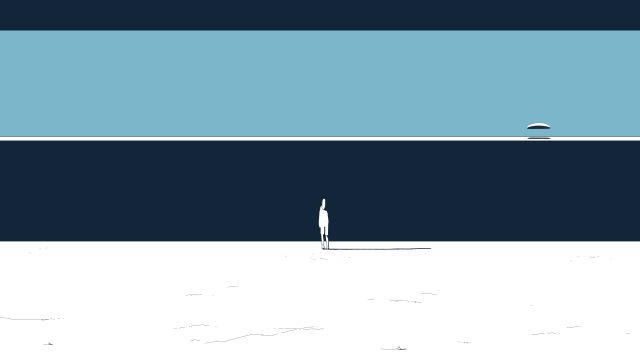
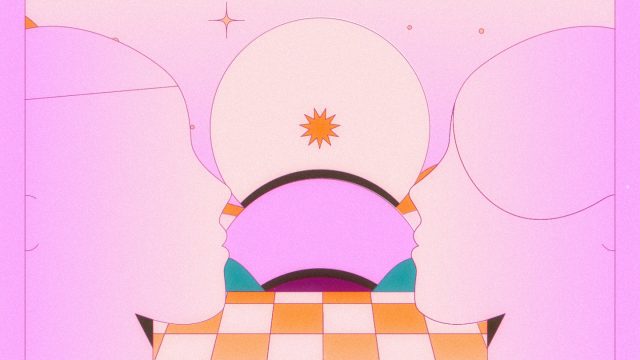

Just when you think Onesize can’t outdo themselves, they do. In their most recent efforts, the gang teamed up with agency Jack Morton Worldwide and Ericsson to promote the company’s vision of The Networked Society. The piece is a fully CG animated film to be screened during Ericsson CEO Hans Vestberg’s Keynote at CES 2012 in Las Vegas. Onesize elaborates on the creation of the film:
We liked the concept very much and started developing style frames immediately.  We followed this by delivering an animatic in one week which was approved by JMW and Ericsson before production commenced. The animatic was very helpful because some of the final shot framings and camera motion were copied exactly from the animatic.

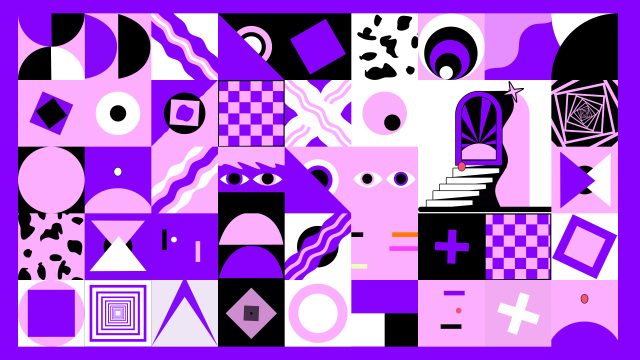
The film was to be split into three sections — fixed line (the past), mobile (the present) and The Networked Society (the future). Each section was designed in a slightly different style by Reinier to symbolize key moments in Ericsson history. We took this opportunity to design an info-graphical 3D look within an abstract environment of diorama-style rooms and spaces. We selected motion designers for each specific section to take on the task of the modeling, animation, lighting and rendering. We completed the 3500px wide and 1500px high film within six weeks, working with five animators/designers and music company Echolab.

CREDITS

Dougal Wilson: Lurpak “Lightest”


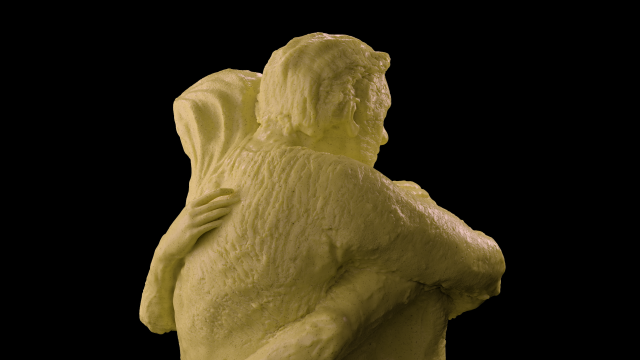
I’m loving this colorful, catchy reminder to eat your vegetables. Wieden+Kennedy, Blink, and director Dougal Wilson create a visceral rainbow of food and food experiences for Lurpak spreadable butter. Fantastic contributions from editor Joe Guest and art director Andy Kelly. Not to mention the essentialness of the song and sound design. The red cabbage stop-motion is stunning and the thoughtful little touches like the rainbow of products at the end hint at how much care went into the production.

Credits

Lynn Fox: Mercedes Benz “Thanks, Airbag”


Blink’s Lynn Fox and Jung von Matt create this captivating ode to airbags for Mercedes Benz.

Also check out Fox’s Killer Moves, another experiment with time, space, and moving vehicles created for Teen Road Safety.

VFX by Electric Theater

Credits

Comments Off

Blur Talks: “The Girl with the Dragon Tattoo” Titles

If you haven’t seen Blur’s opening titles for David Fincher’s rendition of Girl with the Dragon Tattoo, now would be a good time to climb out from under your rock and check them out (above).

In addition to listing the top-billed talent in a film, the role of a good opening credit sequence is to mentally prep the audience for the ensuing film. In that regard, Blur’s titles are an exemplary specimen — perhaps the best from 2011. When the final frame flickers past, your heart rate will have doubled and your pupils will have fully dilated. Consider yourself ready.

Blur’s Tim Miller was kind enough to give us some background on the titles and share some making-of videos with us. Make sure to read on past the jump for all the goodies.

I don’t typically think of Blur as a designer of film title sequences, but it seems you guys are making a push to be regarded as much for your design chops as for your animation skills. Is that a fair assumption? What’s the plan?

We’ve always had an inhouse design group, it’s just not a large as the animation/FX side. So we’ve always been in the game. As for movie titles, I would say this was more a project of opportunity than part of some uber-plan. We’ve done other projects with Fincher in the past, and we have several on-going film development projects with him. For what David had in mind for this title, we were just a natural fit.

But with that said we would like to capitalize on the work. We enjoyed the process, and we like to mix it up and do different styles of work. So hopefully there will be other opportunities for us like this. It’s nice to do something that doesn’t have a big explosion, aliens or gunfire for a change. Though, of course, we love all that stuff!

More details and making-of action after the jump

Art & Graft: Spectrum


Art & Graft worked with Spectrum, a leading provider of autism services based in Cornwall, to create a complete visual rebrand including printed material, signage, digital presence, and this film.

Credits

Kevin Dart & Stéphane Coëdel: A Year of Sun with Mr. Persol


While global climate change has made January feel more like autumn than the dead of winter in New York, I still yearn for the sunny days in Kevin Dart and Stéphane Coëdel’s collaboration A Year of Sun with Mr. Persol.

Credits

Next Steps in Interactive: Marshmallow Laser Feast and Design I/O

Real-world projection mapping was all the rage in 2011. Many a building was seen breaking apart or getting filled up with geometric shapes. This technique is executed similarly to how projection mapping is done in 3D software: A flat animation is created that, when projected onto geometry, wraps around the nooks and crannies for added believability.

One of the most important details in projection mapping is knowing where your audience or camera is going to be and how much they will be moving around. This is because there is often some corner-pinning or other trompe l’oeil trickery involved. As a result, most projection mapping projects either deal with a limited amount of camera movement, or some amount of baked-in perspective that doesn’t necessarily match your viewing angle. This isn’t a bad thing; it’s just an aspect of the technique, like the difference between creating a craggy cliff through projection mapping vs. true 3D — unless you’re going to fly right by that cliff, no one’s going to notice the difference.

So, what’s the point? Well, a group by the name of Marshmallow Laser Feast (Memo Akten, Barney Steel and Robin McNicholas) has figured out one way around this issue. If you are able to link the camera’s position to what’s being projected, than any tiny movement the camera makes can be reflected in real-time. This technology has been used previously in immersive VR CAVEs that are mostly in universities and research facilities. MLF was able to recreate it using consumer products like the Playstation Move.

If nothing I have said makes sense (fair enough), the meaningfulness of this technique can be seen in the ad above. Traditional projection mapping would be able to handle the image at 0:37. It would just be a grid projected directly on the wall. The camera could move around and it would make sense because the texture maps directly to the wall. It would NOT be able to handle what happens at 0:40 and forward. This stretching out to infinity is an illusion that can only happen if the perspective of all the projections perfectly matches the camera.

Another “we live in the future” moment comes from Design I/O (Theo Watson and Emily Gobeille). Their Puppet Parade is an interactive installation that allows children to use their arms to puppeteer larger-than-life creatures. This time, it’s the Kinect that serves as the consumer hardware helping get data into the computer. I love how intuitive the puppeting motion is. It makes it seem perfectly natural that you’re able to control the head of a ten-foot-tall creature with the flick of a wrist, when in fact this is pretty much magic.

All this tech is still pretty bleeding edge, but there are two aspects of these projects that I think are important for the future. First, the ability to interact with graphical worlds on set allows for more spontaneous performances. The actors and cinematographer can see what’s happening and react to it, trying out new performances or camerawork that wouldn’t have come up otherwise.

Second, as these tools get more developed and accessible, a wider range of visual artists will be able to contribute their styles to interactive artwork. Eight to 10 years ago there was a motion graphics boom where a wide range of visual styles, especially illustrated styles, were explored in full motion for the first time. I think in the coming 10 years we’ll see a similar boom in designers and illustrators teaming up with interactive teams to create unique visual worlds to explore.

Anthony Francisco Schepperd & Chris Milk: “Two Against One”


Two great tastes that taste great together. A phrase that applies to the Danger Mouse and Daniele Luppi musical collaboration “Rome,” to Jack White and Norah Jones’ vocals, and to “Two Against One” music video co-directors Anthony Francisco Schepperd and Chris Milk.

Schepperd’s visceral 2D animation was last seen in his tripped out music video for Blockhead’s “The Music Scene” and Ape School’s “Wail to God.” Chris Milk helped helm the interactive films Three Dreams of Black, The Wildnerness Downtown and The Johnny Cash Project.

Motionographer Holiday Catalog 2011 (Part 3)

In a wrap up of this year’s Motionographer Holiday Catalog (see Part 1 & Part 2), here’s the third and final post saluting story, tradition, history, and method.  Enjoy!

UPDATE 10/27/11: Added a last-minute arrival to the holiday scene.  See below!


FoxRetro X-mas from Váscolo.
Also, check out the process behind the party!


Yo Gabba Gabba ” To Give A Present” from Kirsten Lepore.


Christmas Card to Friends from Stephen Fitzgerald.


Singing Christmas Hedgehogs from Bird Box Studio.


National film Board of Canada’s Holiday Card 2011 from Malcolm Sutherland.


Share The Joy. Répandez la Joie. from Shed MTL.


O NIGHT DIVINE from Eliot Rausch + Phos Pictures.
A modern take on the age-old story.


These year end holidays are Grand Central to me – a time of genuflection for the greatest of toys, and consumption of the breadiest of puddings – but especially because I’m a hard-core sentimentalist.  I tend to look at history through really thick rose-colored glasses, willingly. So when there’s a massive thorn in one of those memories (such as when Santa didn’t bring my Christmas wish one year because one of these little bastards screwed up on the job), I try very hard to forgive and forget…and then white-wash it with purple prose.  Similarly, there’s a lesson here with this closing video: Let us be tolerant of others’ ineptitude.

And so, with a final sweeping festive gesture, please enjoy this touching holiday story:


Xmas 2011 from Elefant Studios AG.


Well, that’s it folks – we’ve turned the final page of the 2011 Motionographer Holiday Catalog.  Hopefully there was at least one item here to circle and put on your wishlist, or at the very least, get that general holiday blood flowing.

Along with the featured in this year’s series, I’d like to thank all those who submitted amazing holiday-inspired content to our offices.  When I was a kid, seemingly every commercial on TV around the winter holidays was celebratory in some way, which was really great. And so, while not everything makes it broadcast these days, it’s incredibly inspiring to see the continual effort put forth throughout the industry – personal and professional, across all media – for such a specific, narrow window each year.  Please keep up the great work, and tune in 2012 (assuming no worldwide cataclysm) for more festivities!

Happy Holidays, everyone!

Special thanks to Justin Cone, Michelle Higa, Brandon Lori, Daniel Coutinho, Harm van Zon, Ryan Rothermel, Ash Thorp  + all the other Motionographer cast members for help this year!

An Update on Motionographer Jobs

You may have noticed that Motionographer Jobs now charges a small $50 fee to employers looking to post a work opportunity on our job board. While the service will remain free for those searching and applying to job postings, we’ve levied this price in order to accommodate our costs as a not-for-profit, all volunteer organization. Still, our primary goal of matching the industry’s best skills with the best opportunities remains and we thank each of you for your support and continued participation in Motionographer Jobs.

Comments Off

Want to be on Motionographer? Submit your work now!

Get a daily digest of Motionographer's posts in your inbox. Subscribe now.